Have you ever forgotten to take your medication, send that message you promised, or check whether a bill was due? It happens to everyone. Your phone is in your pocket all day long, yet you still do everything by hand: setting alarm after alarm, copying and pasting the same message every week, opening your banking app every day to check your balance. There's a better way — and you don't need to know a single line of code to make it happen.
What exactly is automation?
Automation simply means teaching your phone to do something on its own, at the right moment, without you having to remember or lift a finger. Think of it this way: when you set a microwave timer to stop after two minutes, you're automating something. On your phone, the logic is the same — you define a rule along the lines of "when X happens, do Y." When it hits 10 p.m., dim the screen. When I connect to my work Wi-Fi, switch to silent mode. Every Monday, send me a notification reminding me to take my vitamins.
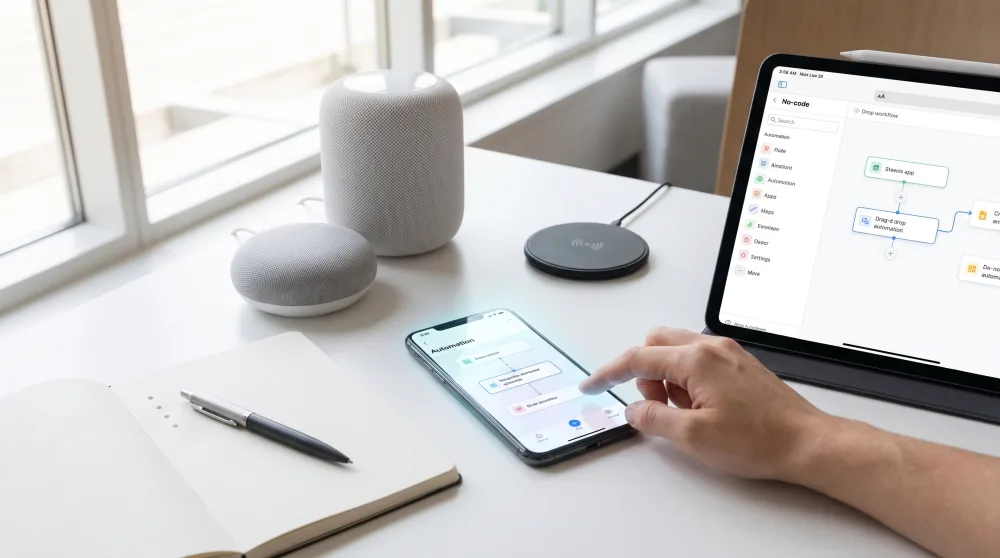
There's no code involved whatsoever. The apps that make this magic happen work with visual building blocks — kind of like assembling a set of LEGOs. You pick a trigger (the "when") and an action (the "do this"), and that's it. Your phone handles the rest.
Apps that do the heavy lifting for you
There are several free tools that work really well and are available for both Android and iPhone. Here are the main ones:
For Android: Automate and Tasker
Automate is the most beginner-friendly option. You build visual flows by dragging and connecting bubbles that represent actions. Want your phone to send a good morning message to your mom every Sunday? You can set that up in under ten minutes. The app is free and available on the Play Store.
Tasker is more powerful, but also a bit more complex. There's a paid version (around $3–4 USD), but it's well worth it if you want to go further: automatically silencing your phone when you open the Netflix app, turning on GPS only when you leave home, or creating a widget that runs a sequence of actions with a single tap. If you get comfortable with Automate and want more control, Tasker is the natural next step.
For iPhone: Shortcuts
Apple already has this tool built right into your iPhone. It's called Shortcuts, and it lives in the operating system itself — no downloading required. Just look for the app by that name on your home screen or search for "Shortcuts" using the Spotlight search.
With it, you can create automations that trigger on their own: when you arrive home, it sends a message to let someone know. When you open Spotify, the volume goes up automatically. At 7 a.m., it opens the weather app and gives you a summary of the day. The interface is visual and in plain English, so it's easy to follow.
For any device: Google Calendar + Assistant
If you use Android or iPhone and already have Google Calendar, you can pair it with Google Assistant to create reminders using natural language. Just open the Assistant microphone and say: "Remind me to call the doctor tomorrow at 10 a.m." Done. No setup required. For recurring tasks, Google Calendar lets you set weekly, monthly, or any custom repetition interval you choose.
Five practical automations for everyday life
Instead of keeping things abstract, here are some real examples that many people already use — ones that make a genuine difference in daily life:
- Medication reminder at the right time: Set a recurring alarm in your phone's built-in clock app (both Android and iPhone support this). Just create the alarm, turn on the repeat option for every day, and label it something like "Take medication." Simple — and no extra app needed.
- Automatic good morning or good night message: In Automate (Android) or Shortcuts (iPhone), create an automation that triggers at whatever time you choose and opens WhatsApp with the message already typed. You just confirm the send. Some apps can even send it without requiring confirmation.
- Turn off Wi-Fi at night: Draining your battery with Wi-Fi running while you sleep doesn't make much sense. In iPhone Shortcuts, create an automation to turn off Wi-Fi at 11 p.m. On Android, Automate can do the same thing.
- Morning briefing when you wake up: In iPhone Shortcuts, there's a built-in shortcut called "Good Morning" that, when activated, shows you the weather, your schedule for the day, and the latest news. You can customize it to show only what matters to you.
- Automatic work mode: When you arrive at your workplace (using location), your phone automatically goes silent and turns on Do Not Disturb. This works great in Tasker and in location-based Shortcuts.
How to build your first automation from scratch (a real step-by-step)
Let's use the simplest possible example: creating a recurring reminder to drink water, using only your phone's built-in clock app. This works on any device.
- Open the Clock app on your phone.
- Go to the Alarm tab.
- Tap Add (the plus symbol, usually in the top or bottom corner of the screen).
- Choose a time — for example, 3:00 p.m.
- Turn on the Repeat option and check every day of the week.
- In the Alarm name or Label field, type "Drink water."
- Save.
It sounds obvious, but most people never use this feature smartly. You can create alarms with different names for each recurring task: "Check email," "Call the school," "Pay the bill," "Review account statements." It's the simplest form of automation there is — and it works.
If you want to take it up a notch, download Automate from the Play Store (Android) or open the Shortcuts app on your iPhone. Inside those apps, look for ready-made templates. Both Automate and Shortcuts have a gallery of automations that other users have built and shared. You don't need to create anything from scratch — just pick a template, tweak it for your situation, and turn it on. It's like installing an app, except instead of a game or social network, you're installing an automatic behavior on your phone.
A few things worth keeping in mind
Automation makes life easier, but there are two things that deserve a little attention:
Access permissions: Many automation apps ask for access to your location, contacts, messages, and other sensitive information. This is necessary for the automations to work, but it's worth taking a look at what you're authorizing. Stick to well-known apps with solid reputations — like the ones I mentioned here. Avoid installing any "miracle automation app" that shows up in an Instagram ad without doing some research first.
Battery and performance: Automations that constantly check your location or run many flows at the same time can drain your battery faster. If you notice your phone dying sooner after setting up an automation, it's worth reviewing which ones are active and disabling any you no longer use.
Watch out with WhatsApp automations: Sending automated bulk messages through WhatsApp can violate the app's terms of service and get your number banned. Use WhatsApp automations only for personal, occasional messages — never for commercial purposes unless you're using the official WhatsApp Business tools.
Frequently asked questions
Do automations need an internet connection to work?
It depends on the automation. Reminders and alarms work offline. Automations that fetch weather data, send messages, or interact with external apps do require an internet connection.
Does this work on older or lower-end phones?
Yes. Google Calendar alarms and reminders work on any Android device, including basic models. Automate also runs well on less powerful hardware. iPhone Shortcuts requires iOS 13 or later, which already covers the vast majority of iPhones currently in use.
Is it safe to let your phone do things on its own?
Yes, as long as you use trustworthy apps and review the permissions you've granted. Automation doesn't hand control of your phone to anyone else — you create the rules, and you can turn them off whenever you want.
Is there a good free option for iPhone?
Yes. Apple's Shortcuts app is completely free and comes pre-installed on any iPhone running iOS 13 or later. It's one of the most full-featured automation tools available today — at no cost whatsoever.
What to do right now
If you've never set up an automation before, the best first step is to open your clock app and create two or three alarms labeled with tasks you tend to forget. It takes two minutes and already makes a noticeable difference. After that, explore the Shortcuts app (iPhone) or download Automate (Android) and browse the ready-made templates. You'll be surprised by how much other people have already figured out — and how much of it is available for free. Automating your routine isn't something only developers do: it's something anyone does when they're ready to stop wasting time on what their phone can handle on its own.