The internet went out. Work stopped, the Google Meet call froze, your show got cut off mid-episode, and the family group chat has gone dead quiet. Before you call your ISP and spend 40 minutes on hold just to hear "we're looking into your area, sir," you can actually fix most problems at home, on your own, in under ten minutes. This article walks you through exactly what to check, in the right order, no technical background required.
First: is the problem just at your place, or is it the ISP?
Before you touch anything, it's worth confirming whether the issue is local or something bigger. Grab your phone, turn off Wi-Fi, and use your regular 4G or 5G data. Try loading any website. If it loads, the problem is inside your home. If it won't load on mobile data either, there might be an outage in your area, but that's rare and usually clears up on its own pretty quickly.
Another quick tip: check your ISP's Twitter/X or Facebook page. When a network goes down for multiple households at once, the comments blow up within minutes. People start complaining before the company even puts out a statement. If you see dozens of people from your area posting about it, relax — it's not your router. But if the feed is quiet and your signal is terrible, the problem is probably right there in your home.
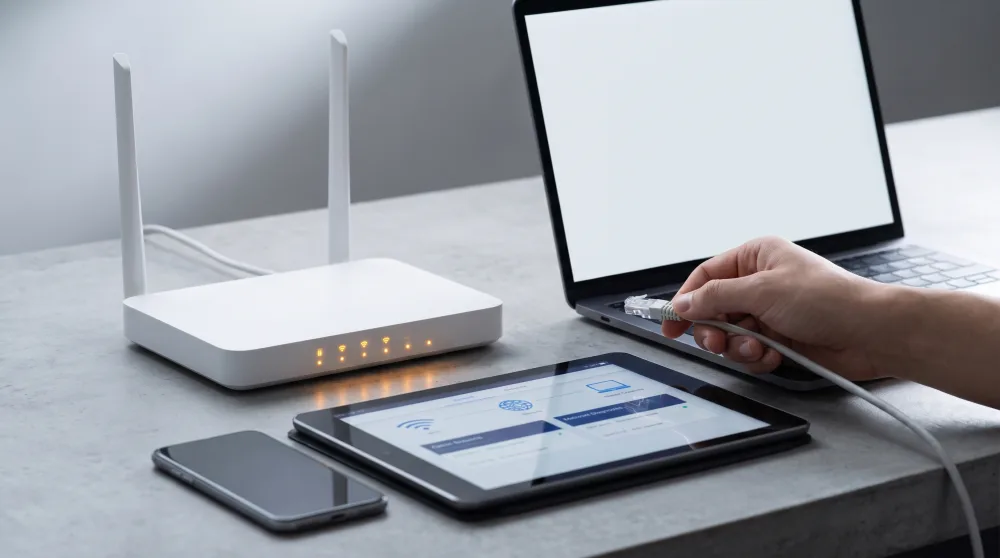
The classic restart: sounds like a joke, but it works
You know that meme about "have you tried turning it off and back on again"? It exists for a reason. Your router is basically a small computer. It runs for months straight, processing data and managing connections, and at some point its memory gets bogged down with temporary information. The result is slowdowns or a complete loss of connection — even when nothing is physically broken.
The right way to restart isn't to press the reset button (that does something else entirely, which we'll cover below). Just unplug it from the wall, wait a full 30 seconds, and plug it back in. Not 5 seconds — thirty seconds, because the device needs to fully discharge before it can boot up fresh. Once it's back on, give it another couple of minutes before you test anything. The router needs that time to reconnect to your ISP's network.
If the internet came back after the restart, great. But if this keeps happening every week, something is genuinely wrong — whether it's the device, the cable, or a configuration issue. At that point it's worth calling a technician or your ISP.
The cables: the invisible culprit nobody ever looks at
Most people never touch their router cables after the technician sets everything up. But cables have a way of causing trouble over time. The cable running from the wall to your router can get bent, pinched by furniture, accidentally yanked, or simply work itself loose from the port. Any one of those things can kill your connection completely, without any warning.
Take a look at the cables going into your router. There are usually two types: the one coming from the wall (carrying the signal from your ISP) and possibly one connecting the router to a desktop computer or another device. Both should be firmly seated, free of sharp bends, and show no signs of wear on the outer coating. If a cable is crammed into a tight corner of the wall, try gently straightening it out. If the jacket is cracked or frayed, that could be your problem right there.
One important detail: in some homes, the modem and the router are two separate devices. The modem is the box that receives the signal from your ISP. The router takes that signal and spreads it over Wi-Fi. Some setups combine both into a single unit. If yours are separate, restart them in sequence: unplug the modem first, wait, then unplug the router, wait a bit longer, plug the modem back in, let it stabilize, and only then plug the router back in.
The router's lights: what each color and blink pattern means
Your router is constantly trying to tell you what's going on through the lights on its front panel. A lot of people ignore this, but it's free, instant diagnostics. Models vary quite a bit, but there are patterns that show up on most devices.
- Power light off or red: the device isn't getting power. Check the outlet and the power cable.
- Internet light (sometimes labeled "WAN" or shown as a globe icon) red or off: the router is on but can't connect to your ISP. This is the most important indicator. It could mean an issue with the external cable, a problem with your line, or an outage on the ISP's end.
- Wi-Fi light blinking: totally normal. It means the signal is being broadcast and data is moving.
- All lights blinking rapidly and chaotically: the router is rebooting or may be malfunctioning. Wait a few minutes to see if it settles down.
- Internet light solid green but internet is slow: the router is connected, but there may be congestion on the Wi-Fi channel or too many devices using bandwidth at the same time.
If the internet light is still red or off after restarting and checking the cables, that's when it's time to call your ISP. You've already done everything on your end. And when you do call, lead with that: "I restarted the equipment, checked the cables, and the internet light is red." That speeds things up significantly, because the support tech on the other end knows you've already ruled out the most common causes.
Slow Wi-Fi but still connected: what might be going on
There's a specific situation that trips a lot of people up: the internet isn't down, it's connected, but it's painfully slow. Videos buffer, pages take forever to load, voice calls cut in and out. That's not necessarily your ISP's fault. It might be something you can fix right there.
The first suspect is distance and obstacles between you and the router. Concrete walls, metal furniture, a microwave running near the router — all of that interferes with the Wi-Fi signal. If you're in a bedroom on the far end of the house and the router is in the living room on the opposite side, the signal reaching you might be barely there. Try moving your laptop or phone closer to the router and see if it makes a difference.
Another thing to consider: how many devices are connected? A typical household these days has a phone for every family member, a smart TV, a Bluetooth speaker, a security camera, a tablet, a gaming console... all on Wi-Fi at the same time. If someone's running a background download or an automatic update is going on, the whole connection can slow to a crawl. You can log into your router's settings (usually accessible by typing 192.168.0.1 or 192.168.1.1 into your browser's address bar) and see exactly how many devices are connected. Sometimes a neighbor has been using your network without you knowing, because the password was never changed after the original setup.
Speaking of passwords: if your Wi-Fi still uses the default password printed on the sticker on your router, and you've handed that out to a lot of people over the years, it's worth changing it. Not out of paranoia — it's just that every device connected to your network takes a slice of your available bandwidth.
Is it worth using an ethernet cable instead of Wi-Fi?
Absolutely, and by a wide margin. If you work from home with frequent video calls, or do anything that requires a stable connection, plugging your computer directly into the router with an ethernet cable cuts out most of the interference that comes with Wi-Fi. The connection is more stable, speeds are typically better, and dropouts become much less frequent. It's a cheap fix — a decent ethernet cable costs under fifteen dollars at any electronics store or online.
The reset button: when to use it and when to leave it alone
Almost every router has a small pinhole on the back labeled "Reset." A lot of people assume it's like a power button — just a way to restart the device. It's not. Pressing and holding that button wipes all of your router's settings and restores it to factory defaults: your Wi-Fi network disappears, the password is gone, and everything your ISP's technician configured may need to be set up all over again.
So, simple rule: don't press the reset button without guidance from a technician or unless you know exactly what you're doing. When you're frustrated because the internet is down, it's tempting to press every button in sight — but this particular one can make things significantly worse. If your ISP asks you to press reset during a support call, they'll walk you through the reconfiguration process right after.
What to do next time
The next time your internet goes out, run through this checklist before anything else: test using mobile data to figure out whether it's an ISP issue or something in your home; restart the router by unplugging it for 30 seconds; check that all cables are firmly connected and not sharply bent; and look at the indicator lights to see what the device is telling you. If the internet light is still red after all of that, or the problem won't go away, then you call your ISP — but now you're calling with specific, useful information in hand, which makes the whole support process go a lot faster.
Most home internet outages have a simple fix. The problem is that nobody explains any of this when the technician first sets up your equipment. Now you know — and you'll probably be able to handle it yourself next time.