You grab your phone in the middle of the night to check a message and get blinded by that bright white screen glaring right in your face. It's happened. To everyone. That's exactly why dark mode has become one of the most sought-after settings in recent years — in messaging apps, social media, browsers, and even the phone's operating system itself. But does it actually do what people claim? Does it protect your eyes? Save battery life? Or is it just a style choice? It's worth understanding what's really behind that black screen before you go switching it on everywhere.
What dark mode is (without the jargon)
Dark mode is essentially an alternate visual style for an app or website where the background is black or dark gray and the text is light — the opposite of what we're used to, which is a white background with dark text. Simple as that.
Almost every major app already offers this option: WhatsApp, Instagram, YouTube, Chrome, Gmail, X (formerly Twitter), TikTok, Spotify, and even Android and iOS themselves support dark mode at the system level. When you enable it through your system settings, every compatible app switches its look automatically — no need to adjust them one by one. Pretty handy.
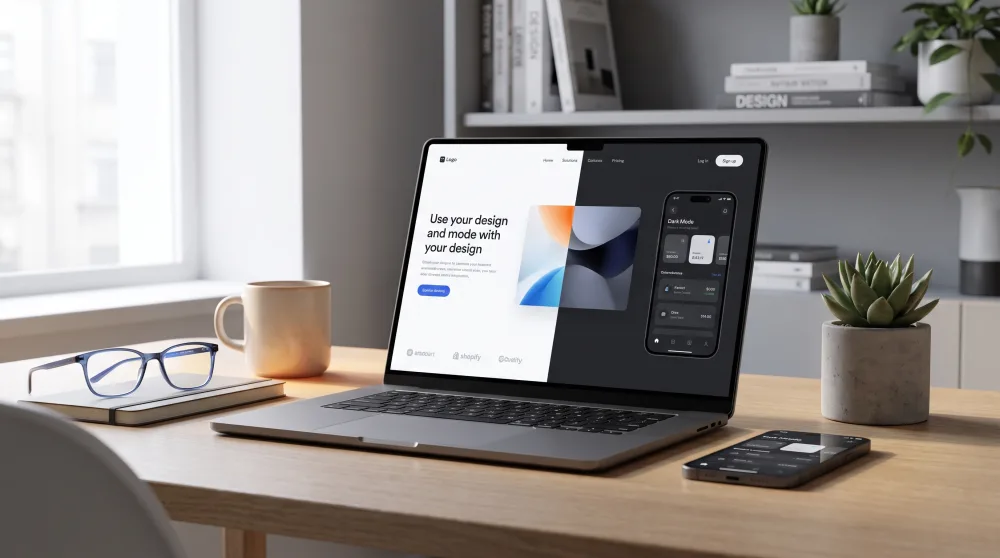
Its popularity exploded around 2019, when iOS 13 and Android 10 brought native dark mode to smartphones. Before that, it was a niche feature used mostly by developers and tech enthusiasts. Today it's standard, available even in the simplest of apps.
Does dark mode actually save battery life?
This is the most repeated claim and also the most poorly explained. The short answer is: it depends on your phone. A lot.
Most modern smartphones use a display technology called OLED or AMOLED. With this type of screen, each individual pixel produces its own light. When a pixel displays black, it simply turns off — meaning it draws zero power. A white screen, on the other hand, has every pixel lit up at full brightness. So yes, on phones with OLED screens, dark mode saves battery in a real, measurable way.
But if your phone has an LCD screen — more common in budget and some mid-range devices — the story is different. LCD screens use a backlight that illuminates the entire display at once, regardless of what colors are shown on screen. In that case, dark mode saves next to no battery at all. The screen stays on at the same brightness either way.
How do you know which type of screen your phone has? A quick way is to search your phone model on Google and check the specs. Phones in Samsung's Galaxy S and A lines (from certain generations onward), iPhones from the X onwards, and many mid-range devices from other brands use OLED or AMOLED. If yours is on that list, dark mode genuinely makes a difference for battery life.
Does dark mode really protect your eyes?
This is where most of the confusion lives. A lot of people use dark mode thinking they're protecting their eyesight, but the science on this hasn't reached a clear consensus yet.
What is certain: at night and in dark environments, a bright white screen forces your eyes to adjust to a huge contrast with the surrounding darkness. That's tiring. Dark mode reduces that contrast and makes the experience less harsh in those specific situations. If you regularly use your phone in the dark, dark mode helps in a practical, noticeable way.
But during the day — especially in well-lit spaces — the situation flips. A dark screen with light text can actually strain your eyes more, because the natural brightness of your surroundings competes with the dark background on the screen. Some studies suggest that dark text on a white background is easier to read under normal lighting conditions, because it mimics printed paper, which human eyes have been processing for centuries.
And what about the infamous blue light everyone talks about? Dark mode doesn't filter out the blue light emitted by your screen. For that, there are dedicated features like Blue Light Filter on Android and Night Shift on iPhone, which shift the screen's color temperature toward warmer, more yellowish tones. Those features have more actual science behind them when it comes to sleep quality, since blue light interferes with melatonin production — the hormone that tells your brain it's time to wind down. Dark mode and blue light filters are two different things, and you can use both at the same time.
How to enable dark mode on the most popular apps and devices
The good news is that enabling dark mode is straightforward on pretty much everything. Here's how to find it in each place:
On your phone (Android and iPhone)
Enabling it at the system level is the most convenient approach, since it switches all your apps at once. On Android, go to Settings > Display > Dark theme (the exact wording may vary slightly by brand, but it's always under "Display"). On iPhone, go to Settings > Display & Brightness > Dark. Done. You can also schedule it to turn on automatically at a specific time or at sunset.
On WhatsApp
Open the app, tap the three dots in the top right corner, go to Settings > Chats > Theme, and select "Dark." On iPhone, WhatsApp follows the system theme automatically, but you can override it by going to Settings > Appearance inside the app itself.
On Instagram and YouTube
Both follow your phone's system theme by default. If you've enabled dark mode on your phone, they'll switch automatically. To force dark mode in Instagram regardless of your system settings, go to your profile, tap the three lines, then Settings and privacy > Appearance > Dark mode. On YouTube, tap your profile picture in the top right corner and select Appearance > Dark theme.
On your computer (Chrome and Edge)
In Chrome, you can enable dark mode through your operating system (Windows or Mac), and it will apply a dark look to the browser's interface. For websites that don't have native dark mode support, there's a free extension called Dark Reader that forces dark mode on any page. It works well in most cases. In Edge, dark mode is found under Settings > Appearance > Theme.
When dark mode isn't the best choice
It might seem like dark mode is always the better option, but that's not quite right. There are situations where it actually works against you.
Reading a long piece of text during the day, in a well-lit room, tends to be more tiring in dark mode than on a white background. This happens because our eyes have been trained over centuries to read dark text on light paper. Long articles, e-books, emails, and documents are generally more comfortable to read in light mode when there's enough light in the room.
Another case: photos and videos. Dark mode in an app's interface doesn't change the colors of the content itself, but it can affect how you perceive brightness and contrast when looking at images. Photographers and designers usually prefer a neutral or light background when evaluating colors accurately. For casual use it doesn't really matter, but it's good to know.
Accessibility is also a factor. Some people with certain visual conditions — such as astigmatism — report having a harder time reading light text on a dark background, because the brightness of the letters seems to "bleed" into the surrounding area. If you experience that, don't force yourself to use dark mode just because it's trendy.
The tip most people overlook: automatic mode
Instead of committing to one side, the smartest approach is to use automatic mode. Both Android and iPhone let you schedule dark mode to turn on at sunset and off at sunrise. You get a white background during the day — when it helps with readability — and a dark background at night, when it reduces the impact on your eyes and your battery.
To set this up on iPhone, go to Settings > Display & Brightness, turn on the Automatic option, and choose either "Sunset to Sunrise" or a custom schedule. On Android, go to Settings > Display > Dark theme > Schedule and configure it the same way. It's the most balanced solution and, honestly, the one that makes the most sense for most people.
Dark mode is neither a villain nor a magic fix. It's a tool. Used in the right context — especially at night and on phones with OLED screens — it makes a real difference in visual comfort and battery consumption. During the day, in bright environments, light mode still has the edge for reading. The practical takeaway is simple: set up automatic mode on your phone today, stop thinking about it, and let the system do the work for you. Your eyes and your battery will thank you — in the right way, at the right time.